

Giphy
Access the world’s largest GIF library directly in your chat. Giphy offers extensive content moderation controls and supports multiple platforms. When to use: You want the widest GIF selection with strong content filtering options.Out-of-the-box in: UI Kit Builder | Widget Builder ❌ | UI Kits | SDK ✅
Before you begin
1
Create a Giphy app
Sign up at Giphy and create a new app.
2
Select API access
Select API and click Next.
3
Save your API key
Enter your app name and description, create the app, then copy the API key.
Extension settings
1
Open your CometChat app
Login to CometChat and select your app.
2
Enable Giphy
Go to Chat & Messaging —> Features, under Extentions and enable Giphy.
3
Add your API key
Open the extension settings, paste your Giphy API key, and save.
Implementation
| Technology | Support | Docs |
|---|---|---|
| UI Kit Builder | ||
| Widget Builder | ❌ | |
| UI Kits |      | |
| SDK | ✅ |
Tenor
Access Google’s GIF library with built-in SafeSearch content moderation. Integrates well with other Google services. When to use: You prefer Google’s ecosystem or want simpler content moderation via SafeSearch.Out-of-the-box in: UI Kit Builder | Widget Builder ❌ | UI Kits | SDK ✅
Before you begin
1
Create a Tenor app
Sign up at Tenor and create a new app.
2
Save your API key
Enter your app name and description, create the app, then copy the API key.
Extension settings
1
Open your CometChat app
Login to CometChat and select your app.
2
Enable Tenor
Go to Chat & Messaging —> Features, under Extentions and enable Tenor.
3
Add your API key
Open the settings, enter your Tenor API key, and save.
Implementation
| Technology | Support | Docs |
|---|---|---|
| UI Kit Builder | ||
| Widget Builder | ❌ | |
| UI Kits | | |
| SDK | ✅ |
Stickers
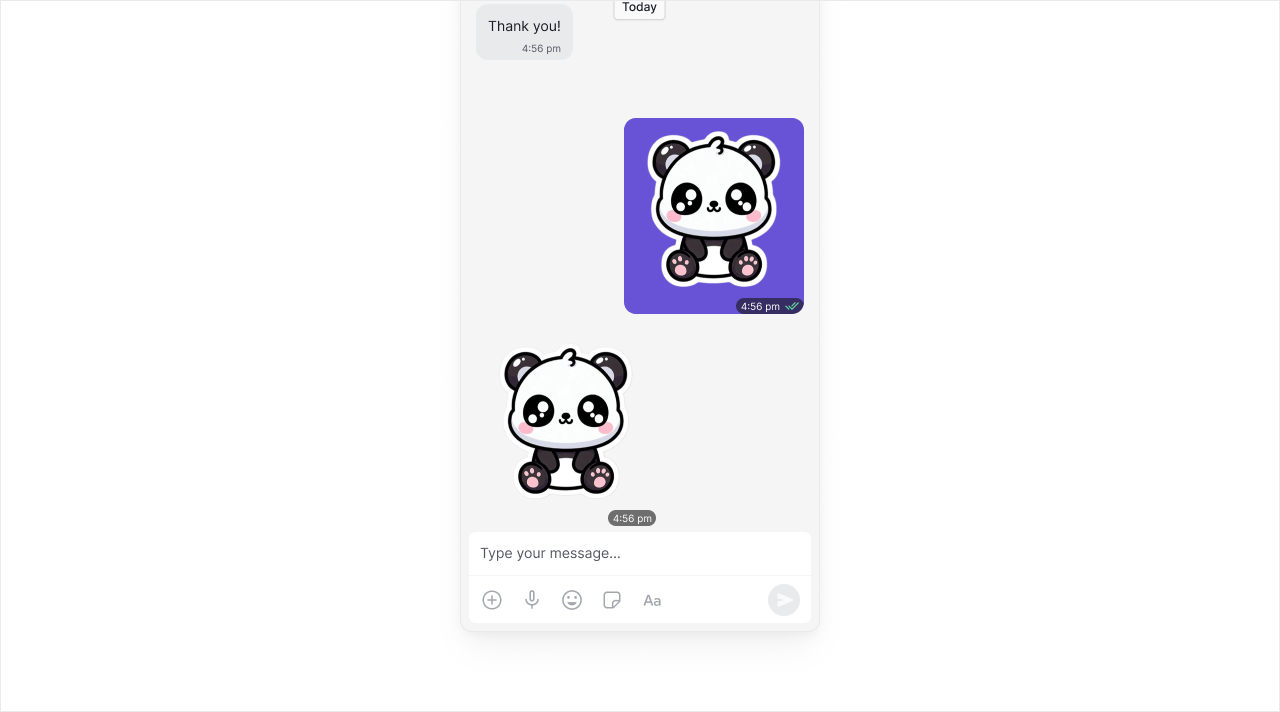
The Stickers Extension is an image manager which allows you to quickly add/remove stickers directly from the dashboard. Full control over your sticker library. When to use: You want to curate your own sticker sets or use custom branded stickers.Out-of-the-box in: UI Kit Builder ✅ | Widget Builder ✅ | UI Kits ✅ | SDK ✅
Extension settings
1
Open your CometChat app
Login to CometChat and select your app.
2
Enable Stickers
Go to Chat & Messaging —> Features, under Extentions and enable Stickers.
CometChat provides 14 default sticker sets. You can also create your own sets and enable only the stickers you want to use.
Implementation
| Technology | Support | Docs |
|---|---|---|
| UI Kit Builder | ✅ | |
| Widget Builder | ✅ | |
| UI Kits | ✅ | |
| SDK | ✅ |
Stipop
Stipop is the world’s trendiest sticker platform and creator community. Access thousands of sticker packs created by artists worldwide. When to use: You want access to trending, professionally-designed stickers without managing your own library.Out-of-the-box in: UI Kit Builder | Widget Builder ❌ | UI Kits | SDK ✅
Before you begin
1
Create a Stipop account
Sign up at Stipop.
2
Complete your app details
Provide your application name, website, category, sub-category, region, and app MAU.
3
Get your credentials
Click Get Started, then copy the API Key from the dashboard. In Settings → Application, copy the Application ID.
Extension settings
1
Open your CometChat app
Login to CometChat and select your app.
2
Enable Stipop
Go to Chat & Messaging —> Features, under Extentions and enable Stipop.
3
Add credentials
Open the settings and enter your Stipop Application ID and API Key.
Implementation
| Technology | Support | Docs |
|---|---|---|
| UI Kit Builder | ||
| Widget Builder | ❌ | |
| UI Kits | | |
| SDK | ✅ |
Message Translation
Translate messages in real-time to break language barriers. Supports multiple languages and integrates with Google Translate. When to use: International teams, global communities, customer support across regions.Out-of-the-box in: UI Kit Builder | Widget Builder ❌ | UI Kits | SDK ✅
Before you begin
1
Create a Google Cloud project
Sign up at Google Cloud Console and create a new project.
2
Enable Cloud Translation API
In your project, go to APIs & Services → Library and enable the Cloud Translation API.
3
Create API credentials
Go to APIs & Services → Credentials and create an API key.
Extension settings
1
Open your CometChat app
Login to CometChat and select your app.
2
Enable Message Translation
Go to Chat & Messaging —> Features, under Extentions and enable Message Translation.
3
Add your API key
Open the extension settings, paste your Google Cloud API key, and save.
Implementation
| Technology | Support | Docs |
|---|---|---|
| UI Kit Builder | ||
| Widget Builder | ❌ | |
| UI Kits | | |
| SDK | ✅ |
Polls
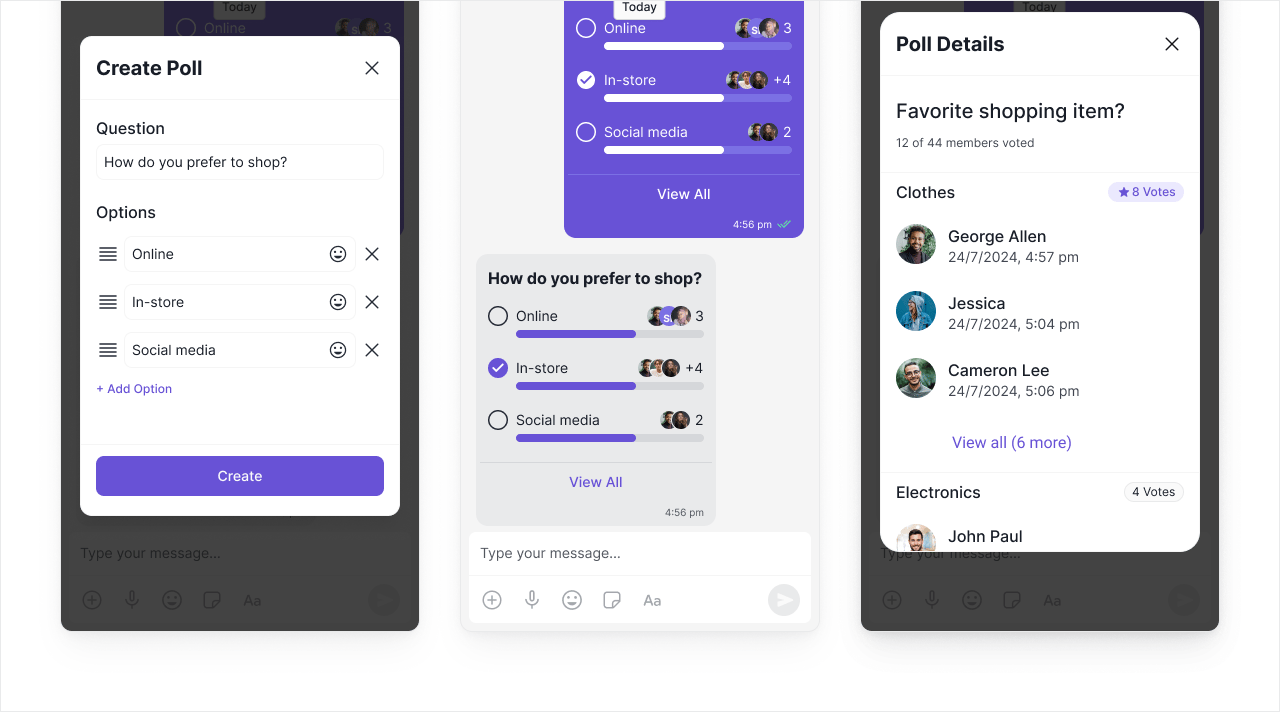
Create interactive polls to gather opinions and make group decisions. Users can vote and see results in real-time. When to use: Team decisions, event planning, community feedback, quick surveys.Out-of-the-box in: UI Kit Builder ✅ | Widget Builder ✅ | UI Kits ✅ | SDK ✅
Extension settings
1
Open your CometChat app
Login to CometChat and select your app.
2
Enable Polls
Go to Chat & Messaging —> Features, under Extentions and enable Polls.
Implementation
| Technology | Support | Docs |
|---|---|---|
| UI Kit Builder | ✅ | |
| Widget Builder | ✅ | |
| UI Kits | ✅ | |
| SDK | ✅ |
Reminders
Set reminders for messages to follow up later. Users receive notifications at the scheduled time. When to use: Task follow-ups, meeting reminders, deadline tracking, important message callbacks.Out-of-the-box in: UI Kit Builder | Widget Builder ❌ | UI Kits | SDK ✅
Extension settings
1
Open your CometChat app
Login to CometChat and select your app.
2
Enable Reminders
Go to Chat & Messaging —> Features, under Extentions and enable Reminders.
Implementation
| Technology | Support | Docs |
|---|---|---|
| UI Kit Builder | ||
| Widget Builder | ❌ | |
| UI Kits | | |
| SDK | ✅ |