

Bitly
Use Bitly to shorten long URLs in messages and keep links clean and consistent. Bitly provides click tracking and analytics for shared links. When to use: You need link analytics, branded short domains, or enterprise-grade URL management.Out-of-the-box in: UI Kit Builder | Widget Builder ❌ | UI Kits | SDK ✅
You need a Bitly Access Token and your Bitly Group GUID to enable this extension.
Before you begin
1
Create a Bitly account
Sign up at Bitly.
2
Generate an access token
In Bitly, open Settings → API and generate a new Access Token.
3
Get your Group GUID
Use Bitly’s Get Groups API with the token to fetch your Group GUID.
Extension settings
1
Enable Bitly in your CometChat app
Login to Dashboard, select your app, then go to Chat & Messaging —> Features, under Extentions and enable Bitly.
2
Add credentials
Open the extension settings and enter your Bitly Access Token and Group GUID.
3
Save settings
Save your configuration to activate the extension.
Implementation
| Technology | Support | Docs |
|---|---|---|
| UI Kit Builder | ||
| Widget Builder | ❌ | |
| UI Kits |      | |
| SDK | ✅ |
Link Preview
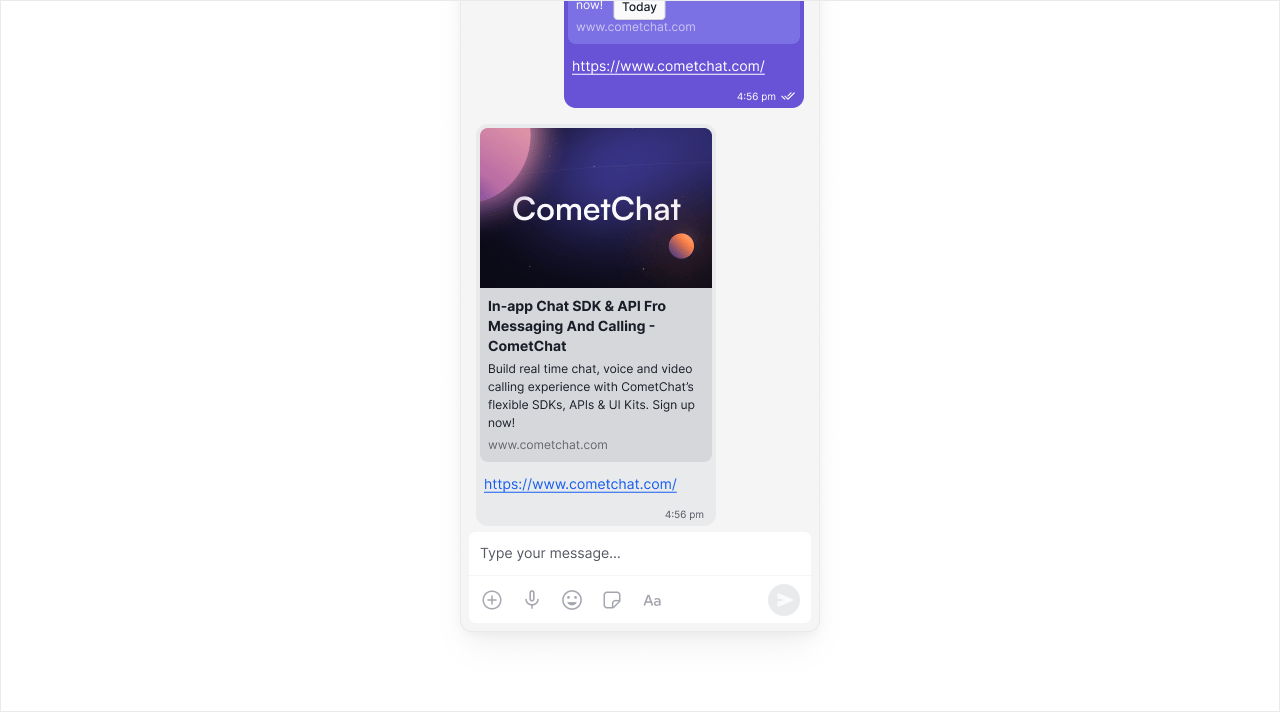
The Link Preview extension shows a preview of the web page for every link in your message. Returns raw metadata that you can style however you want. When to use: You want full control over how link previews look in your app.Out-of-the-box in: UI Kit Builder ✅ | Widget Builder ✅ | UI Kits ✅ | SDK ✅
If you want a ready-to-render preview card, use Rich Media Preview.
Extension settings
1
Open your CometChat app
Login to CometChat and select your app.
2
Enable Link Preview
Go to Chat & Messaging —> Features, under Extentions and enable Link Preview.
How does it work?
We provide a few details about the URL that is in your message:- Description: Summary text pulled from the page.
- Favicon: The site’s icon for display.
- Image: Preview image for the link.
- Title: Page title resolved from the URL.
- URL: The final resolved link.
Implementation
| Technology | Support | Docs |
|---|---|---|
| UI Kit Builder | ✅ | |
| Widget Builder | ✅ | |
| UI Kits | ✅ | |
| SDK | ✅ |
Message shortcuts
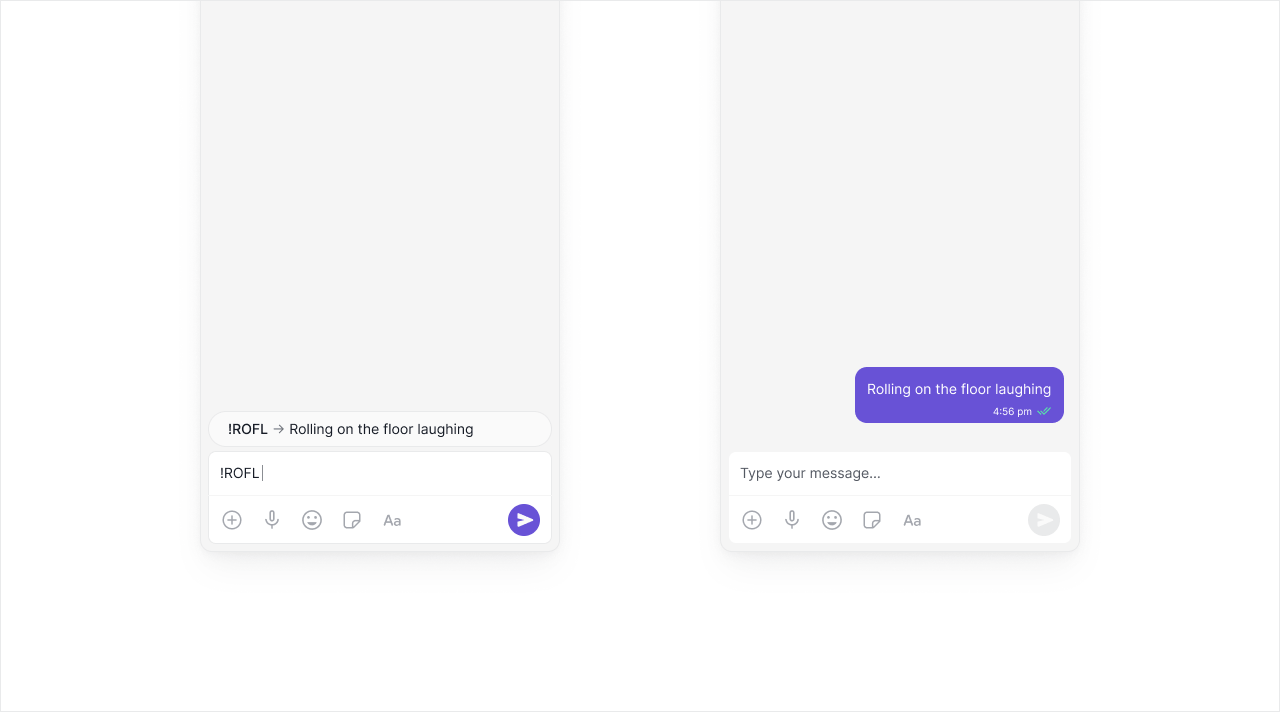
The Message shortcuts extension enables your users to send predefined messages. For example, !hb can be automatically expanded to Happy birthday! When to use: Support teams with canned responses, communities with common greetings, or any app where users send repetitive messages.Out-of-the-box in: UI Kit Builder | Widget Builder ❌ | UI Kits | SDK ✅
Global shortcuts are available to all users. User-created shortcuts are private to the creator.
Extension settings
1
Open your CometChat app
Login to CometChat and select your app.
2
Enable Message Shortcuts
Go to Chat & Messaging —> Features, under Extentions and enable Message Shortcuts.
3
Configure shortcuts
Open the extension settings to view global shortcuts, then edit or add new ones.
Implementation
| Technology | Support | Docs |
|---|---|---|
| UI Kit Builder | ||
| Widget Builder | ❌ | |
| UI Kits | | |
| SDK | ✅ |
Pin Message
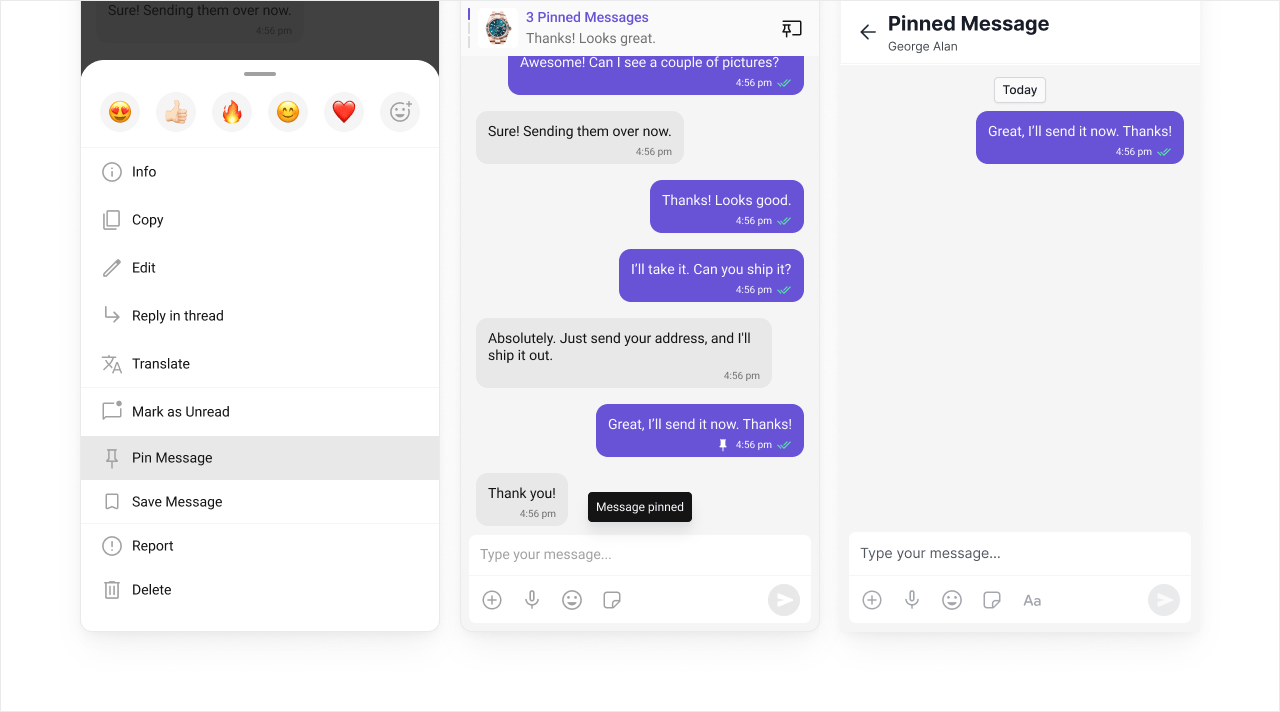
Pin messages so important information stays visible in a conversation. Pinned messages appear at the top of the chat for all participants. When to use: Highlighting announcements, keeping meeting links accessible, or preserving important decisions in group chats.Out-of-the-box in: UI Kit Builder | Widget Builder ❌ | UI Kits | SDK ✅
Extension settings
1
Open your CometChat app
Login to CometChat and select your app.
2
Enable Pin Message
Go to Chat & Messaging —> Features, under Extentions and enable Pin Message.
Implementation
| Technology | Support | Docs |
|---|---|---|
| UI Kit Builder | ||
| Widget Builder | ❌ | |
| UI Kits | | |
| SDK | ✅ |
Rich Media Preview
The Rich Media Preview Extension generates rich preview panels for all popular sites using Iframely. Returns ready-to-render HTML embeds for YouTube videos, tweets, and more. When to use: You want polished, interactive embeds without building custom preview components.Out-of-the-box in: UI Kit Builder | Widget Builder ❌ | UI Kits | SDK ✅
Before you begin
1
Create an Iframely account
Sign up with Iframely.
2
Get your API key
Generate an Iframely API key for configuring the extension.
Extension settings
1
Open your CometChat app
Login to CometChat and select your app.
2
Enable Rich Media Preview
Go to Chat & Messaging —> Features, under Extentions and enable Rich Media Preview.
3
Add your API key
Open the extension settings and enter the Iframely API key.
The preview metadata is updated after the message is sent, so implement the
onMessageEdited listener. See Edit message in the SDK docs.Implementation
| Technology | Support | Docs |
|---|---|---|
| UI Kit Builder | ||
| Widget Builder | ❌ | |
| UI Kits | | |
| SDK | ✅ |
Save Message
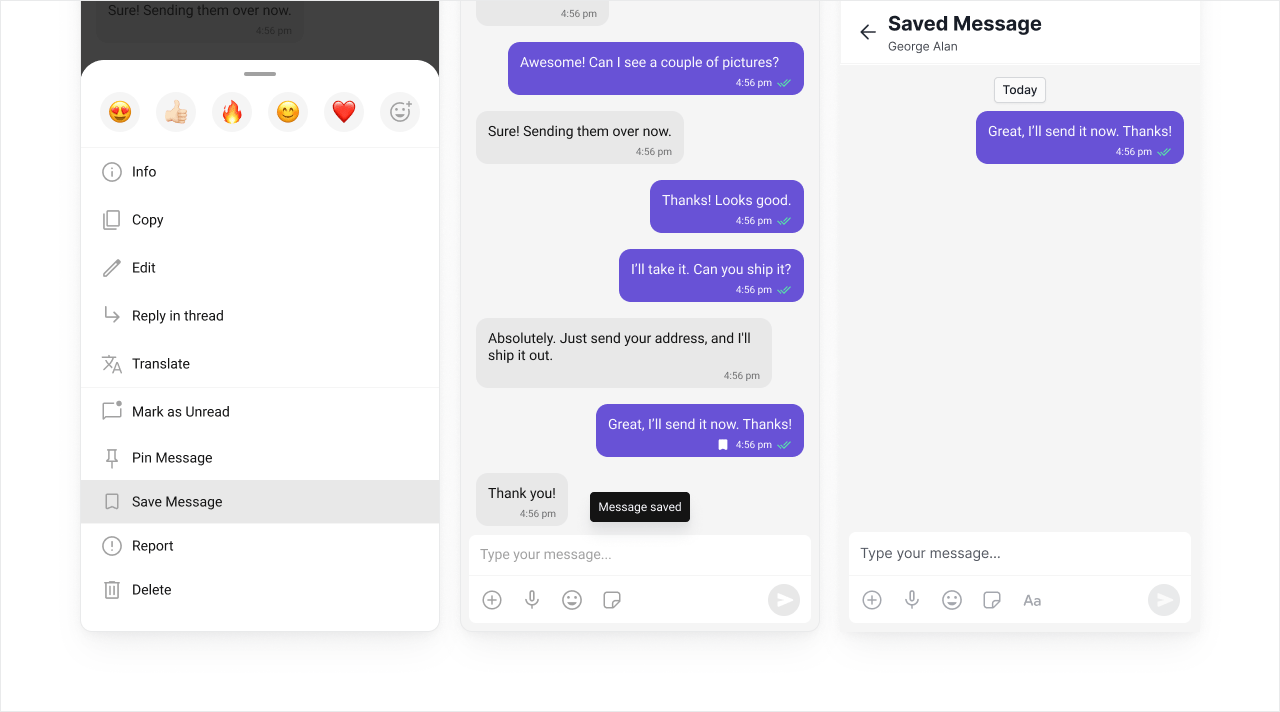
Let users save important messages and revisit them later. Works like bookmarking - users can build a personal collection of important messages. When to use: Apps where users need to reference information later, like saving addresses, instructions, or important announcements.Out-of-the-box in: UI Kit Builder | Widget Builder ❌ | UI Kits | SDK ✅
Saved messages are private and visible only to the user who saved them.
Extension settings
1
Open your CometChat app
Login to CometChat and select your app.
2
Enable Save Message
Go to Chat & Messaging —> Features, under Extentions and enable Save Message.
Implementation
| Technology | Support | Docs |
|---|---|---|
| UI Kit Builder | ||
| Widget Builder | ❌ | |
| UI Kits | | |
| SDK | ✅ |
Thumbnail Generation
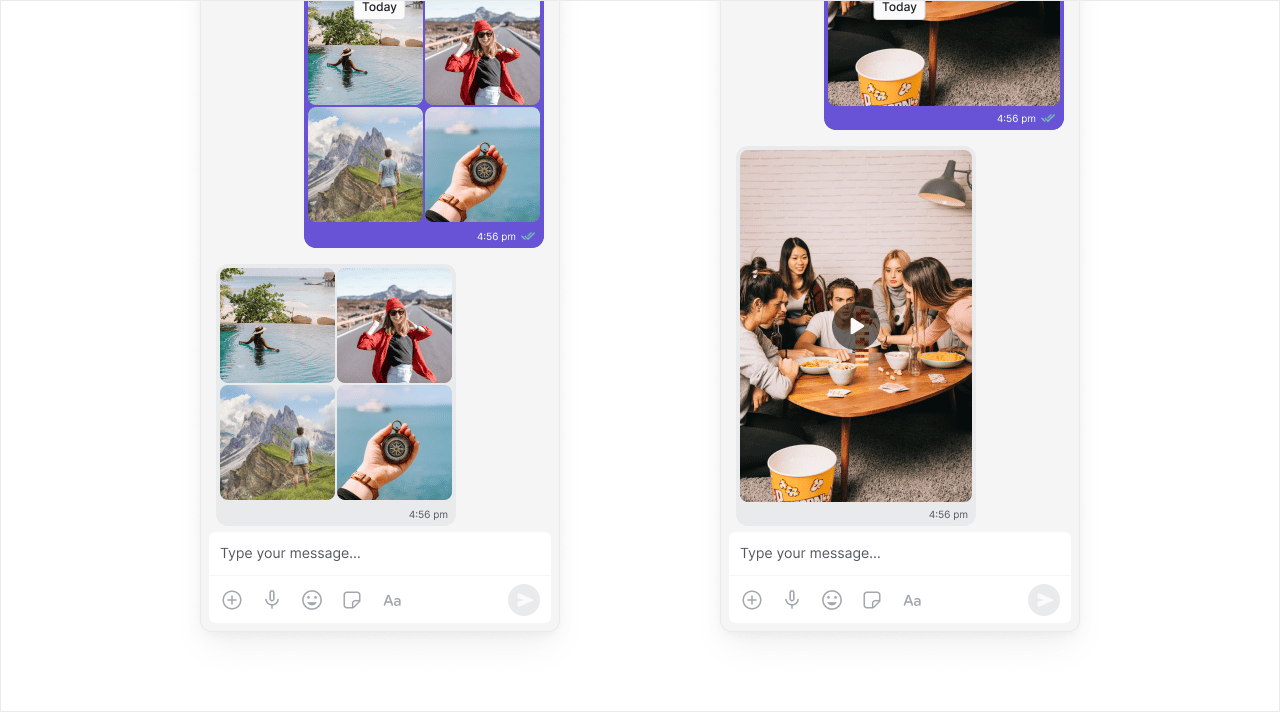
The Thumbnail Generation extension generates thumbnail previews for image and video messages. Improves load times by showing small previews before users download full media. When to use: Any app with media sharing - especially important for mobile users on slower connections.Out-of-the-box in: UI Kit Builder ✅ | Widget Builder ✅ | UI Kits ✅ | SDK ✅
Extension settings
1
Open your CometChat app
Login to CometChat and select your app.
2
Enable Thumbnail Generation
Go to Chat & Messaging —> Features, under Extentions and enable Thumbnail Generation.
Unlike image thumbnails, which are normally generated in milliseconds, video thumbnails may take a little longer.
Implementation
| Technology | Support | Docs |
|---|---|---|
| UI Kit Builder | ✅ | |
| Widget Builder | ✅ | |
| UI Kits | ✅ | |
| SDK | ✅ |
TinyURL
Use TinyURL to shorten long links and keep messages clean and readable. Simple setup with no analytics overhead. When to use: You just need shorter URLs without tracking or branding requirements.Out-of-the-box in: UI Kit Builder | Widget Builder ❌ | UI Kits | SDK ✅
Before you begin
1
Create a TinyURL account
Sign up with TinyURL.
2
Generate an API token
In TinyURL, open Account → API and create a token with permission to create TinyURL links.
Extension settings
1
Open your CometChat app
Login to CometChat and select your app.
2
Enable TinyURL
Go to Chat & Messaging —> Features, under Extentions and enable TinyURL.
3
Add credentials
Open the settings and enter the TinyURL API Token.
Implementation
| Technology | Support | Docs |
|---|---|---|
| UI Kit Builder | ||
| Widget Builder | ❌ | |
| UI Kits | | |
| SDK | ✅ |
Voice Transcription
Voice transcription extension converts audio messages into text using Rev.ai. Makes audio content searchable and accessible. When to use: Accessibility compliance, users who prefer reading over listening, or making voice messages searchable.Out-of-the-box in: UI Kit Builder | Widget Builder ❌ | UI Kits | SDK ✅
Before you begin
1
Create a Rev.ai account
Sign up with Rev.ai.
2
Generate an access token
Get your Rev.ai
Access Token for configuring this extension.Extension settings
1
Open your CometChat app
Login to CometChat and select your app.
2
Enable Voice Transcription
Go to Chat & Messaging —> Features, under Extentions and enable Voice Transcription.
3
Add your access token
Open the settings and enter the Rev.ai Access Token.
The transcription information is updated after the message is sent, so implement the
onMessageEdited listener. See Edit message in the SDK docs.Implementation
| Technology | Support | Docs |
|---|---|---|
| UI Kit Builder | ||
| Widget Builder | ❌ | |
| UI Kits | | |
| SDK | ✅ |